Terraforming

Infrastructure as code (IaC) is now somewhat of a necessity for a Network Engineer in 2024, and if you think about it, it makes perfect sense. With more and more workloads moving to cloud platforms why would you waste time in the GUI when you can code your environments to deploy, replicate them with ease for Test and Pre-Prod, amend when required and always have a as-is state view – how it should look, written down in code!

The tools I am using to embark down this rabbit hole are (I’m on a Mac);

  • HomeBrew – a great package manager for MacOS.
  • Terraform – This was installed via HomeBrew.
  • AWS CLI – As above, HomeBrew.
  • Docker Desktop – if you want to create code for automating Container creation/deletion etc as another
  • Import AWS IAM Access Keys to AWS CLI
  • A Code Editor – I like VSCode because it’s free, but also because there are extensions for many programming languages, that help greatly.

Building the environment

Install of HomeBrew. I ran the curl code on the Homebrew website directly into a Terminal session window. Just make sure to watch out for the additional steps at the end – I missed them first time.

Install Terraform. Homebrew on OS X instructions on developer.hashicorp website – obviously, if your OS is different choose the option that suits.

Install the AWS CLI. I ran the Command Line Installer (Terminal) from the AWS CLI install guide. Again, depending on your flavour of OS, choose accordingly.

Extra! Install Docker Desktop. If you’d like to deploy Terraform for spinning up Docker containers too, I’ve found Docker Desktop to be great. Grab the relevant version here.

Import AWS IAM Access Key Credentials. Note: make sure to download the AC file and store it somewhere secure (key is only available at time of creation!) – or look at utilising Roles (short-term access). This import action permits Terraform to authenticate against the relevant Provider – AWS in this instance. Alternatively run an aws configure once the AWS CLI has been installed to input your access key credentials, which will provide the AWS CLI the relevant permissions to make AWS API calls.

Code Editor. VSCode tends to come out top of many a chart, therefore I went this this, but there are plenty of others to chose from so see which you like – e.g. Sublime Text, NotePadd++, Espresso (Mac).

Once that’s in place you can launch VSCode and open up a terminal window to create your AWS working directory. Note: Each Terraform configuration must be in its own working directory, i.e. AWS, Docker, GCP, Azure.

Within your Terminal window, you can make a new directory to work from.

mkdir terraform-aws

Then navigate into your newly created directory.

cd terraform-aws

Create a new file, which will be used to create our Terraform configuration.

touch main.tf

Then edit this file to begin building out your code. Note: Other text editors are also available.

nano main.tf

Once the directory is created I open the folder within VSCode so I may write code from within the apps editor as opposed to the more clunky, but adequate, terminal window. File > Open Folder > local directory created above. This will then open in the left Explorer pane. For added quality of life you can install some beneficial extension such as Hashicorp Terraform, Terraform and Terraform Autocomplete.

Now we have our environment set up we can now start running terraform code to build out AWS and/or Docker containers. In Part 2 we’ll look at;

  • Building out our code in the main.tf file
  • Initialising the new configuration to pull down the relevant Providers
  • Format and Validate our config
  • Create the infrastructure!

Thanks,
Ish

Building out a VPC Part 1

In AWS a VPC (Virtual Private Cloud) allows you to build out your own piece of the AWS cloud, the way you want it, such as your Data Center schema for example, if you’re migrating.

I’ve been going through the material to recertify my Solutions Architect cert, therefore thought I’d put it down in writing for reference.

Create your CIDR block

Within the console, navigate to “VPC” . Once you’re in the VPC dashboard you can launch the VPC Wizard, but you don’t really learn much going that route. Navigate down the left pane and select “Your VPCs”.

Hit Create VPC and you will be presented with the following screen, which will ask you for certain information.


Give your VPC a useful name and specify your Classless InterDomain Routing block. You can select the radio button to assign an IPv6 block, but I didn’t, and I left Tenancy at Default instead of “Dedicated” as I don’t need my VPC running on dedicated AWS hardware/resource.

If successful you’ll receive:

By creating a new VPC, you’ll automatically receive the following:

  • A new Routing table
  • A new default Network ACL (Access Control List)
  • A new default Security Group.

Subnets

Next step is to create your individual subnets that will be carved out from your VPC’s CIDR block. On the left hand pane select “Subnets”.

You will find a handful of subnets already listed, but these are the default subnets for the default VPC. The new subnets we create will be in addition to these.

Give the first subnet a useful name, assign it into the new VPC you’ve just created and drop it into an “Availability Zone” of your choosing. I shall be making two subnets – a Public and a Private, therefore each will go into a different AZ for additional resilience.

Follow the same steps for the second, private subnet and hit “Create”. We now have two subnets, one for our Public facing services and a second, Private subnet for our backend.

At the moment we have no means of internet access out of our newly provisioned VPC and Subnets, therefore we need to remedy that so our resources can update/talk out etc.

Routing Table

We don’t want newly provisioned resources in our VPC to use the default routing table, therefore we need to create a new one, associate it with our Public facing subnet and give it a Gateway out.

On the left pane in the VPC Dashboard navigate to:


Give your Routing table a useful name, associate it with your VPC and hit “Create”. Highlighting your newly created Routing table will display a number of tabs:

Select the “Subnet Associations” tab and hit “Edit subnet associations” to link your new, public subnet to this new routing table.

Make sure to select the Public subnet and hit Save, as we are now going to create a Internet Gateway and specify a default route in our Routing table to forward non-local traffic out to the internet via our IGW.

Internet Gateway

Navigate down the left pane of the VPC Dashboard to “Internet Gateways” and create a new IGW.

Highlight your new Internet Gateway and select “Actions -> Attach to VPC”

Select your new VPC and hit “Attach”. Now go back to your Route Tables and highlight your newly created Routing Table for your public subnet.

Go to the Routes tab and then “Edit routes”. Add a new default route with a destination of 0.0.0.0/0 (anywhere other than the routes you know about), as a Target select your newly created Internet Gateway and hit “Save routes”.

You will now have a default route below your local route, which will forward all non-local traffic to the Internet Gateway.

In Part 2 we’ll finish off by:

  • Creating suitably secure Security Groups for our Public and Private instances.
  • Creating an EC2 instance as a web server and confirming all the routing and necessary security is in place.
  • Creating a NAT Gateway to provide the private subnet with means to get to the internet.

To be continued…

I.

Website Resilience in AWS

In February of this year Amazon Web Services suffered a pretty bad outage on it’s S3 (Simple Storage Service) platform, which is used by millions of it’s customers, predominantly for hosting websites and the issues caused many of these sites to go dark.

Now, although to some degree one should expect their hosted content to be unavailable at some point, when hosted externally in the public cloud (they don’t offer 100% availability, derr!), it would appear those impacted decided to skimp on resilience.

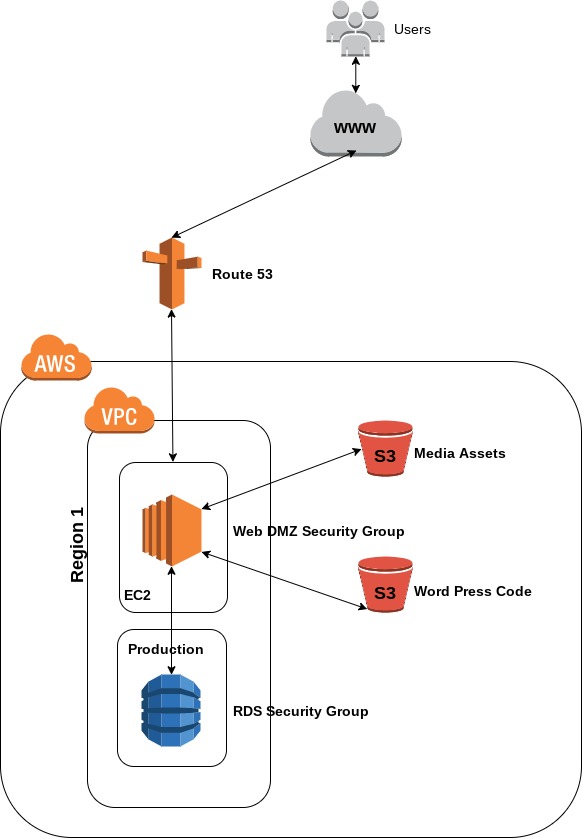
Non-resilient Website

The above diagram illustrates a regular website being hosted on AWS. You type in a domain name, a lookup is performed via AWS’s DNS service – Route 53, you’re forwarded on to a Linux or Windows VM running your web server code and your content is passed to the requester via S3 buckets. If you’re popular enough to have comments/feedback etc then this is stored in a back-end RDS database.

Now let’s take S3 buckets, data is replicated within an Availability Zone (which houses more than two data centres), but not across different AZ’s or geographical regions, you can configure this, but must pay for the benefit.

Website_Resilient_Regions
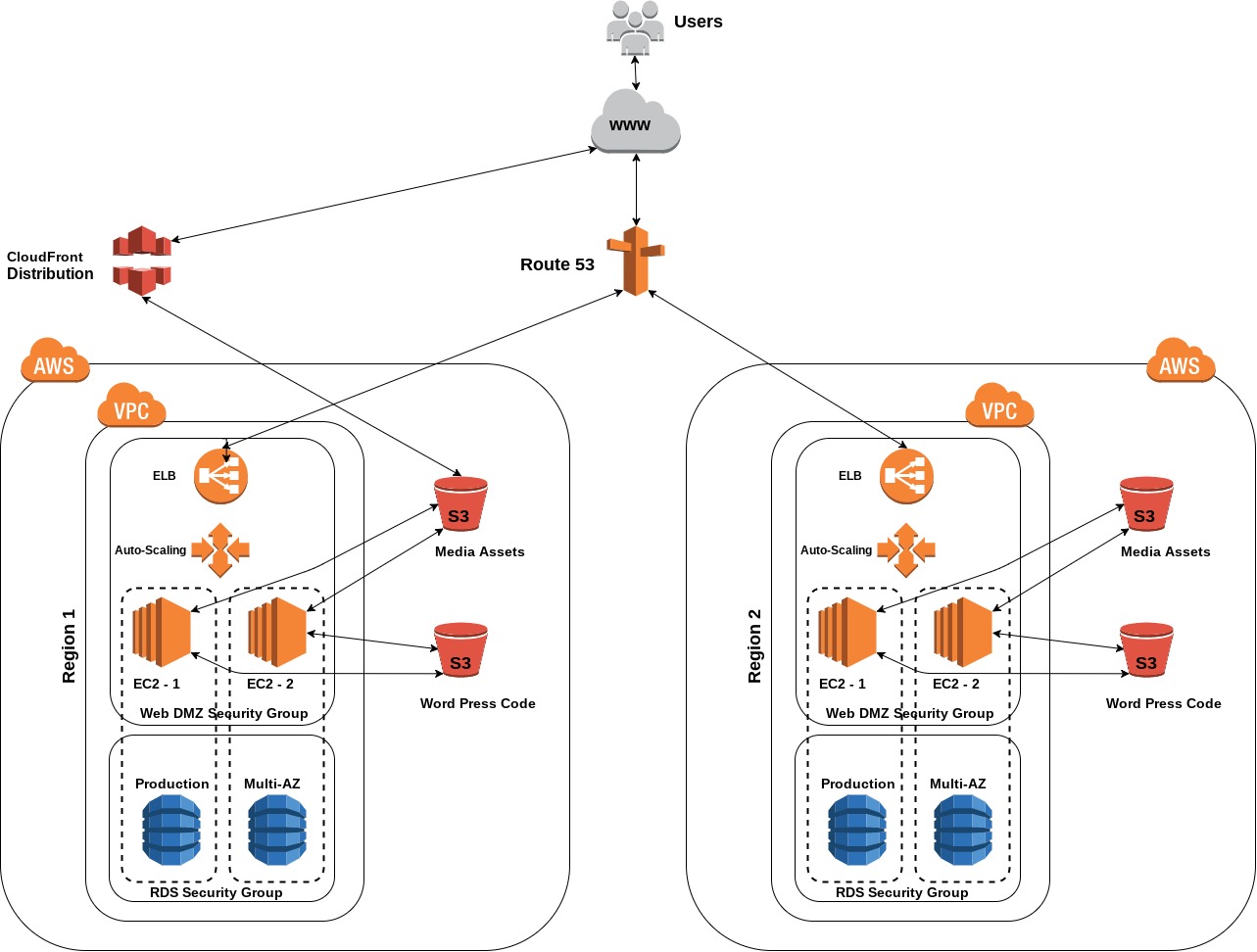
Website Resilience

In this scenario, you mitigate any real possibility of your business critical website going dark, as even if Amazon have S3 issues in an AZ or even a region, the likelihood of two zones going dark would require something pretty spectacular (read: devastating) to occur.

You have DNS resolution occurring using multiple ELBs (Elastic Load Balancers), therefore if one lookup fails you still have a second juicy AZ or region to fall back on and point your requesting users at.

There are a few more bells and whistles to the above diagram, notably a CloudFront distribution to serve cached files to users from geographically closer servers. And also the use of Auto-Scaling groups to automatically scale up and down my web server cluster if demand warrants it.

The recent AWS outage shows us that we all need to think about how important and costly would it be off domain X were to go offline.

I.

website

The First (of Many)

Hi, welcome to my blog. I hope in the coming weeks, months and years this blog will be filled with useful posts to interest a wide range of tech readers.

The main focus will involve aspects of my job, as a Network Security & Support Engineer, and notably revolve around Cisco, but also a few other vendors. I tend to lab plenty, therefore I plan to share these with you.

I am a Cisco Certified Networking Professional, hence the Cisco focus, but also an AWS Certified Solutions Architect, therefore expect some post on the current king of the cloud too.

Thanks for coming by.

I.

post

Website Powered by WordPress.com.

Up ↑