Home servers have become really popular over the last 5 years or so, whether they be your regular NAS or a more home server flavour, with MS Windows, Linux or a Hypervisor as an OS.
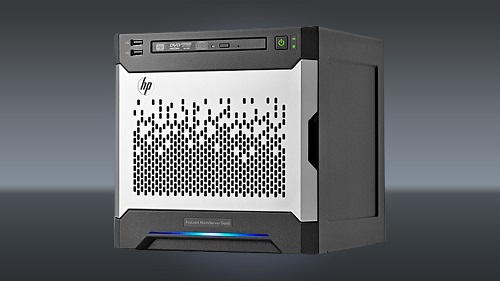
I decided to jump aboard the band-wagon, so picked up a Gen 8 HP Proliant from eBuyer to utilise as a mix of the below:
- Plex Media Server
- Home Lab for study
I have since added a 4TB WD Red hard drive and will be picking up 16GB (2×8) of Ram in the coming weeks to max out it’s two dimm slots. I will, at some point, also add additional disks and employ RAID – with 0 (Striping) or 1 (Mirroring) being the options.
Plex Media Server
Plex is a client-server media player system and allows you to consolidate all of your pictures, films, Music etc in one location, and access it all from anywhere with an internet connection. You can stream the movies on a range of devices (iPads, SmartPhones etc), but you do have to pay £4.99 for the privilege – but in my eyes it’s well worth it.
Home Lab
This was the main reason I picked up a decent home server. As I work away the Gen8 allows me to remotely connect onto my home server and lab/test away in my own virtualised environments!
I initially went with Xubuntu as my server OS, which is perfect for home use as it’s lightweight and you don’t need to be a Linux developer to navigate around it. However, although the Gen8 supports RedHat Linux (RHEL) out of the box, to go above a 640×480 resolution you have to create your own bespoke driver!
If I had to do this just for a useful res, I assumed there would be other issues down the line I’d encounter too, therefore decided to wuss out and rebuild it with something more friendly – Windows Server 2016 Essentials!
After a couple of weeks running Server 2016 I decided to start fresh again, therefore went for a Hypervisor. My choice was the most popular, VMWare’s ESXi. This now means that I can spin up as many VM’s as I desire (resource allowing) – for example I have a Server 2016 VM, which sits on my LAN happily as my Plex Server. I then access all of my VM’s using the vSphere Client below.
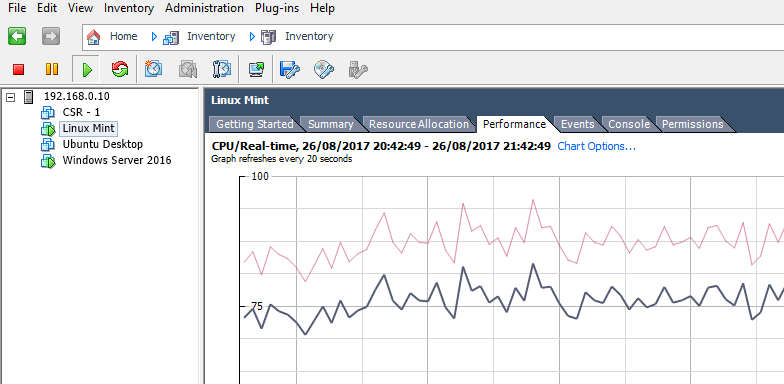
Other VM’s include Linux distro’s – Mint, Ubuntu etc and also a Cisco 1000v virtual router so I can try my hand at some Ansible Playbooks.
Bug-Bears
There are a few issues I had/have with the Gen8, and for all it’s positives here are a few negatives.
- iLO requires a licence to mount virtual cd – 60 day workaround
- No DVI or HDMI, just VGA
- NTFS pendrives not supported, only Fat32, but 4GB file limit
- To install an OS you need to load the relevant disk drivers before the OS will see the Array you’ve created prior in the BIOS – I had them on a USB pen-drive and you can grab them from here. You can also circumvent this using the HP Intelligent Provisioning utility, but I prefer the old fashion way.
I.



 The thoughts and ramblings of a Network Security Engineer.