Threat Modelling Part 1

To quote the CISSP study material I’ve consumed to achieve my CISSP Certification;

“Threat modelling is the security process where potential threats are identified, categorised, and analysed.”

The goal should be to begin threat modelling early in the design process of a system and continue through-out it’s lifecycle. This attempts to reduce vulnerabilities and reduce the impact of remaining vulnerabilities (acceptable risk level). This approach looks to predict threats and designing in defences during the coding phase, instead of relying on post-deployment updates and patches. Unfortunately not all threats can be predicted, therefore a reactive approach to threat modeling must take place after a solution has been deployed.

There are more threats than there are grains of sand on the sea shore, so it’s important to use a structured approach to identify relevant threats. There are three common approaches that can be used;

  • Focused on Assets.
    • Uses asset valuation results and looks to identify threats to the valuable assets. For example if an asset hosts data, access controls can be evaluated to identify threats.
  • Focused on Attackers.
    • Identifies potential attackers and the threats they represent based on the attacker’s goals. For example a government may be able to identify potential attackers and what they are looking to achieve.
  • Focused on Software.
    • If a company develops software, it can look to consider any potential threats against that software. An example would be organisations that develop their own web pages that use more sophisticated programming, and thus present additional attack vectors to would-be attackers.

It is common to pair threats with vulnerabilities to identify threats that can exploit vulnerabilities and impact a business. When attempting to log and categorise threats, it is useful to use a guide or reference model. One such model is Microsoft’s categorisation scheme known as the STRIDE threat model. It is often used to assess threats again software applications or operating systems, but can be used in other contexts too, such as Network threats and Host threats. STRIDE is an acronym for;

  • Spoofing.
    • The act of falsifying a logical identity to gain access to a system. Examples would be IP addresses, MAC addresses, usernames, system names.
  • Tampering.
    • An action resulting in unauthorised changes to manipulation of data in transit or in storage. Such attacks are are a violatio of integrity as well as availability from a CIA Triad perspective.
  • Repudiation.
    • The ability of an attacker or user to deny having performed an action or activity. Attackers may carry out such attacks to not be help accountable for their actions.
  • Information Disclosure.
    • The distribution of private, confidential, or controlled information to an external or unauthorised entity. Such omissions in the development stage such as failing to remove debugging code, leaving sample applications in place, and not sanitising applications can be causes.
  • Denial of Service.
    • An attack that aims to prevent authorised use of a resource. This can be achieved through flaw exploitation, connection overloading, or traffic flooding.
  • Elevation of Privilege.
    • An attack where a limited user account is transformed into an account with greater privileges. This could be via social exploitation to gain credentials of a higher-level user account, or an application exploit that temporarily or permanently grants additional powers to an account.

There is also a more risk-centric threat modelling methodology – PASTA, which aims to select or develop contermeasures in relation to the value of the assets to be projected. The seven stages of PASTA are;

  • Stage 1 – Definition of the Objectives (DO) for the Analysis of Risk
  • Stage 2 – Definition of the Technical Scope (DTS)
  • Stage 3 – Application Decomposition and Analysis (ADA)
  • Stage 4 – Threat Analysis (TA)
  • Stage 5 – Weakness and Vulnerability Analysis (WVA)
  • Stage 6 – Attack Modelling & Simulation (AMS)
  • Stage 7 – Risk Analysis & Management (RAM)

For each stage of PASTA there are a specific list of objectives to achieve and deliverables to produce in order to complete the stage. More information on PASTA can be found on the informative blog post by Nick Kurtley here.

Other methodologies include Trike, which also focuses on a risk-based approach, and DREAD (Disaster, Reproducibility, Exploitability, Affected Users, and Discoverability) which follows the STRIDE method by depending on aggregated threat model output. VAST (Visual, Agile, and Simple Threat) is another concept, but focuses on Agile project management and programming principles, with the goal of integrating threat and risk management into an Agile programming environment on a scalable basis.

Determining and Diagramming Potential Attacks

Once you have a grasp in regards to the threats facing your development project or deployed infrastructure, the next step in threat modelling is to determine the potential attach vectors that could be exploited. I, along with many others find visualising the solution and it’s transactions to identify, and mitigate where deemed necessary.

Once a diagram has been crafted, identify all of the technologies involved. This will include operating systems, applications, and protocols. Be specific down to versions of software. With this list all forms of attacks can be considered, including logical/technical, physical, and social. Examples could include spoofing, tampering, and social engineering.

The next phase of threat modelling is Reduction Analysis.
Terraforming

Infrastructure as code (IaC) is now somewhat of a necessity for a Network Engineer in 2024, and if you think about it, it makes perfect sense. With more and more workloads moving to cloud platforms why would you waste time in the GUI when you can code your environments to deploy, replicate them with ease for Test and Pre-Prod, amend when required and always have a as-is state view – how it should look, written down in code!

The tools I am using to embark down this rabbit hole are (I’m on a Mac);

  • HomeBrew – a great package manager for MacOS.
  • Terraform – This was installed via HomeBrew.
  • AWS CLI – As above, HomeBrew.
  • Docker Desktop – if you want to create code for automating Container creation/deletion etc as another
  • Import AWS IAM Access Keys to AWS CLI
  • A Code Editor – I like VSCode because it’s free, but also because there are extensions for many programming languages, that help greatly.

Building the environment

Install of HomeBrew. I ran the curl code on the Homebrew website directly into a Terminal session window. Just make sure to watch out for the additional steps at the end – I missed them first time.

Install Terraform. Homebrew on OS X instructions on developer.hashicorp website – obviously, if your OS is different choose the option that suits.

Install the AWS CLI. I ran the Command Line Installer (Terminal) from the AWS CLI install guide. Again, depending on your flavour of OS, choose accordingly.

Extra! Install Docker Desktop. If you’d like to deploy Terraform for spinning up Docker containers too, I’ve found Docker Desktop to be great. Grab the relevant version here.

Import AWS IAM Access Key Credentials. Note: make sure to download the AC file and store it somewhere secure (key is only available at time of creation!) – or look at utilising Roles (short-term access). This import action permits Terraform to authenticate against the relevant Provider – AWS in this instance. Alternatively run an aws configure once the AWS CLI has been installed to input your access key credentials, which will provide the AWS CLI the relevant permissions to make AWS API calls.

Code Editor. VSCode tends to come out top of many a chart, therefore I went this this, but there are plenty of others to chose from so see which you like – e.g. Sublime Text, NotePadd++, Espresso (Mac).

Once that’s in place you can launch VSCode and open up a terminal window to create your AWS working directory. Note: Each Terraform configuration must be in its own working directory, i.e. AWS, Docker, GCP, Azure.

Within your Terminal window, you can make a new directory to work from.

mkdir terraform-aws

Then navigate into your newly created directory.

cd terraform-aws

Create a new file, which will be used to create our Terraform configuration.

touch main.tf

Then edit this file to begin building out your code. Note: Other text editors are also available.

nano main.tf

Once the directory is created I open the folder within VSCode so I may write code from within the apps editor as opposed to the more clunky, but adequate, terminal window. File > Open Folder > local directory created above. This will then open in the left Explorer pane. For added quality of life you can install some beneficial extension such as Hashicorp Terraform, Terraform and Terraform Autocomplete.

Now we have our environment set up we can now start running terraform code to build out AWS and/or Docker containers. In Part 2 we’ll look at;

  • Building out our code in the main.tf file
  • Initialising the new configuration to pull down the relevant Providers
  • Format and Validate our config
  • Create the infrastructure!

Thanks,
Ish

Home Lab

In an attempt to help me prove new network related stuff and, in some instances prove solutions before offering it up in a design document, I’ve been putting together a home lab.

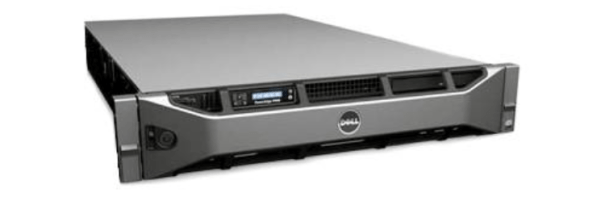
I spent a while skimming eBay looking for second-hand servers and eventually settled upon a Dell Power Edge R715. This particular one came with an AMD 6272 processor at 2.1Ghz (16 cores), 128GB of Ram and just under a TB of SAS 10k disk space, but there are some sellers (I found my on eBay) that will spec the server how you want it – at a cost of course. I paid £250 delivered for mine, which was a pretty good deal.

I did have (still may) plans to utilise some other hardware I had lying around:

  • x2 Cisco 3750G switches
  • Cisco ASA 5510 firewal

But, as I play around with, i.e. break/reboot the kit frequently I didn’t want to suffer the wrath of an angry family member that can’t access Netflix or play Angry Birds :).

The setup is really nice and simple at the moment and it means I can hop over the internet onto VMWare ESXi and build/test/break stuff without any problems.

MTU Fun

I recently ran into an issue whereby traffic ceased passing over a link that had been in use for weeks and months without any issues. Post investigations and packet captures the root cause ended up being a mis-match in MTU size, but I thought I’d share my experience……

The Maximum Transmission Unit (MTU) is the largest number of bytes an individual datagram can have on a particular data communications link. When encapsulation, encryption or overlay network protocols are used the end-to-end effective MTU size is reduced. Some applications may not work well with the reduced MTU size and fail to perform Path MTU Discovery. In response, it would be nice to be able to increase the MTU size of the network links.

Source: Wikipedia

For most Ethernet networks the MTU size is, by default set to 1500 bytes, however today’s networks with numerous overlays and encapsulation on-top of encapsulation it can be difficult to determine what you should be setting the MTU size to throughout your network and across your WAN.

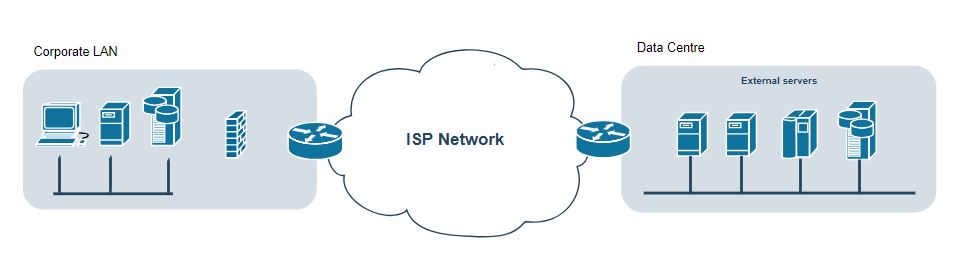
If we take the below image as a reference and pick SMTP as our example protocol. We have the corporate LAN on the left where our traffic will be sourced and the remote DC on the right where our Exchange servers reside.

LAN-DC

The communication should flow as follows:

  1. Mail sent from Client to local Exchange server
  2. Exchange processes and determines next-hop, which will then likely be a mail gateway of sorts.
  3. Mail gateway performs it’s own interrogation, i.e. potentially blocks attachments/key words that are not permitted to leave the network, but if processed successfully traffic will will be forward on towards the egress point of the network. Additional upstream appliances could include IDPS, additional proxies etc.
  4. Traffic reaches egress firewall and provided there is an ACL in place to permit, the traffic is forwarded on to CE router and onto the WAN.

Let’s say the egress interface on the corporate firewall has an MTU of 1500 bytes, but the CE router interface has an MTU of 1400 bytes – what’s going to happen?

Well, in my recent experience I found SMTP traffic was leaving the firewall destined for the DC and a successful 3-way handshake performed and a connection established. However, data was leaving the firewall at 1500 bytes, being chopped up by the router and sent on it’s way. The reply from the remote DC device (using ICMP) was being dropped by the firewall (as why would you want your egress firewall to be pingable….)

Upon performing a packet capture from the corporate network I could see SMTP traffic leaving, but receiving TCP retransmit messages, but also messages stating:

Timeout waiting for client input

On first look I assumed this related to authentication, but after some expert googling it turned out to be an idiosyncrasy of Windows, which actually related to the network and the MTU size of the packets being transmitted.

There was a change performed on the CE router, which had reduced said MTU size, and although SMTP 3-way handshakes were still successful large amounts of drops were occuring and it ground mail to a standstill.

Tip: MTU size is always a great thing to check, but so are the approved changes that took place the time of the issue 😉

The below list is great to have when looking to determine your MTU size and how many bytes will be added to the frame:

GRE (IP Protocol 47) (RFC 2784) adds 24 bytes (20 byte IPv4 header, 4 byte GRE header)
6in4 encapsulation (IP Protocol 41, RFC 4213) adds 20 bytes
4in6 encapsulation (e.g. DS-Lite RFC 6333) adds 40 bytes
Any time you add another outer IPv4 header adds 20 bytes
IPsec encryption performed by the DMVPN adds 73 bytes for ESP-AES-256 and ESP-SHA-HMAC overhead (overhead depends on transport or tunnel mode and the encryption/authentication algorithm and HMAC)
MPLS adds 4 bytes for each label in the stack
IEEE 802.1Q tag adds 4 bytes (Q-in-Q would add 8 bytes)
VXLAN adds 50 bytes
OTV adds 42 bytes
LISP adds 36 bytes for IPv4 and 56 bytes for IPv6 encapsulation
NVGRE adds 42 bytes
STT adds 54 bytes

Source: Network World

I.

MTU

Favourite AWS Services

I’m a fan of Amazon Web Services. Mainly from a technical perspective, as it’s not necessarily cheaper to move from on-prem to on-cloud – so always read the small-print before uplifting your whole datacentre ;). Infact, it interested me so much I sat the Certified Solutions Architect exam last year and thoroughly enjoyed going through the material and labbing along the way.

I like to keep a track of updates to current AWS services, but also new ones that are released and thought I’d highlight 5 of my current favourite offerings.

5. Elastic Compute Cloud (Amazon EC2)

EC2_Icon

EC2 is the bread and butter of AWS. It provides you with all the compute grunt you could ever wish for or need. Need 5 Linux VMs for a web server cluster? Or how about the ability to auto-scale when demand requires it, then spin those same servers down automatically when demand tails off? Don’t worry, EC2 can do just that, as well as a vast amount more.

To spin up an EC2 instance (VM) you have a few options. You can:

  • Use their quick start utility, which provides you with ~30 of the most popular AMI’s (Amazon Machine Images) to choose from. Think your standard, hardened versions of Amazon Linux, RedHat, SUSE, Fedora and then your Windows and Ubuntu variants too
  • Choose an AMI that you have created yourself, perhaps a specific build of server with pre-install software
  • Head over to the AWS Marketplace and utilise for free, or buy specific software that runs in the cloud. Think F5 from Big-IP, Splunk or Juniper etc
  • Launch a community AMI that has been created by a member of the community

It’s frighteningly easy to get up and running, just make sure to terminate the instance/s when you’re finished playing otherwise the costs can soon start to build without you even knowing.

Intro to EC2 Video

4. Kinesis

Kinesis_Icon

If you’re interested in processing or analyzing streams of data – think Twitter for example, then Kinesis and  is a really useful service.

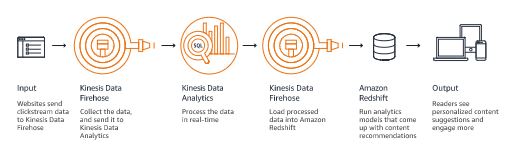
You can use it to build custom applications to collect and analyze streaming data for a bespoke set of needs or requirements. One example could be monitoring Twitter for every time the tag #JustinBieber (whoever he is….) is seen, then pushing that data through Firehose to the analytics engine to present users with personalised content – graphs, diagrams, feeds etc. Powerful stuff.

As per AWS Kinesis FAQs , a Kinesis stream flow:

Kinesis_Flow

Amazon Kinesis Streams enables you to build custom applications that process or analyze streaming data for specialized needs. You can continuously add various types of data such as clickstreams, application logs, and social media to an Amazon Kinesis stream from hundreds of thousands of sources. Within seconds, the data will be available for your Amazon Kinesis Applications to read and process from the stream.

3. Trusted Advisor

Trusted_Advisor

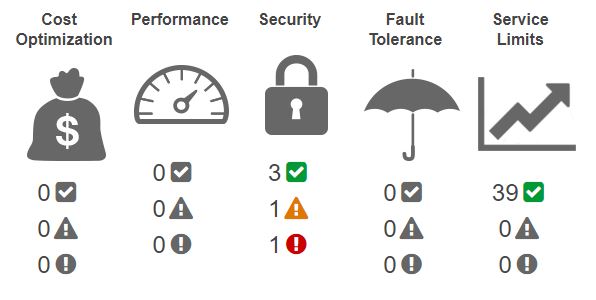
Trusted Advisor is like having your own AWS architect on-hand, 24 hours a day, to audit your AWS account and tell you where it’s vulnerable, where you could save money and how you could increase performance. Whenever you want.

Trusted_Advisor_Checks

It’s pretty simple – if you use AWS, you should be using TA.

2. Identity & Access Management

IAM

IAM is certainly in the top 3 of the most important AWS services. With it you can pretty much control all access to all of your accounts resources, whether they be groups or individuals.

Straight out of the box you will want to create users (then swallow your root credentials to keep them safe…) and manage their identities by granting generic or bespoke permissions. This way they’ll only have access to the resources they need.

1. Virtual Private Cloud (VPC)

VPC

As a Network bod myself, VPC is of real interest to me. It allows you to provision you own isolated CIDR block, allocate subnets and configure routing tables, all within AWS. You can then architect your solutions in a virtual network that you have defined and could, in theory replicate your on-prem, private IP schema’s in the cloud!

You can also create a hardware Virtual Private Network (VPN) connection between your corporate datacenter and your VPC and leverage the AWS cloud as an extension of your corporate datacenter.

AWS VPC FAQ.

I feel that the VPC gives a little bit back to the Network Engineer, as in they’ve just seen half their DC shifted to VM’s in the cloud so still get to play with IP subnetting and IP allocation in the Cloud.

A Quick AWS explanation of VPC can be found here.

If you want more AWS content than any normal person could ever be able to digest, then head over to the AWS YouTube channel.

I.

AWS_Services_Feature_Image

My Tech Visits

During the working day – over lunch usually, and when I have some time to waste I’ll frequent a number of tech related sites so I thought I’d jot them down here for reference.

Packet Pushers

Packet_Pushers_Logo

http://packetpushers.net/

I don’t visit the Packet Pushers website too often, but they are probably my most frequently listened to podcast. There are some informative blog posts on their site and you can also access all of the podcasts there too.

The Register

the_register_2

https://www.theregister.co.uk/

The Register is easily my number one IT news website I visit. It not only has up to date news, but the writers add their own satirical/comical slant on the news, which I really like. Highly recommended.

IPSpace

IP_Space

http://www.ipspace.net/

IPSpace is an networking orientated blog not affiliated to any vendors (for the record) that’s run by CCIE #1354 Ivan Pepelnjak. On this blog you’ll find excellent articles, webinars, books relating to architectures, real-life solutions, technologies and more.

Packet Life

Packet_Life

http://packetlife.net/

Packet Life is a blog by Jeremy Stretch, an extremely knowledgeable network engineer who enjoys sharing what he’s learned with his readers.

There are some fantastic networking cheat sheets on this site, along with lots of great tech posts, packet capture trace files, software and book recommendations and much, much more. Definitely worth a look.

I.

the_register

TCPDUMP’ing

Within Network Security & Support roles it’s normal practice to, at some point, have to jump onto a CLI and start messing around with tcpdump.

For me it’s usually when there’s a connectivity issues either between two hosts, i.e. server/client or server/server. That’s where TCPDUMP is a massive help, as packets don’t lie. If you can show said server/developer bod, in black and white what is going on, they can’t argues – although they still may. 😉

If I had a penny for every time a colleague blamed a firewall or the network for why their server isn’t communicating as it should, I’d be a wealthy man.

Below are some of my most frequently utilised tcpdump commands and switches, and what they do and print.

My Favourite TCPDUMP Commands

tcpdump -i any host 10.1.1.1 and host 10.2.2.2

This is a good starter to see all traffic between two hosts. After you’ve confirmed you’re receiving output you can then look to add further switches to filter further.

Useful Switches

tcpdump -D shows the interfaces you can capture on

tcpdump -i any will capture traffic on all available interfaces

Use -c to stop your tcpdump after a specific number of packets have been captured

To display IPs and not hostnames use the -n switch

The default packet capture byte size is 65535, i.e. the full packet, therefore if you only want to capture the first 64 or 96 bytes of each packet, use the -s switch

-S will turn off relative sequence numbers and give you the complete, harder to read strings

Use the -w <filename>.pcap to write a capture to a file, but use -v to display how many packets have been captured to file.

You can view your written capture files on the CLI, however they display just the same, therefore I prefer to review them in Wireshark.

That’s a whole series of blog posts in itself though, happy capturing 🙂

I.

Ubuntu_TCPDUMP


Website Powered by WordPress.com.

Up ↑